Icon Grid and Preferences
Switch between list and compact icon grid in the items panel, and configure the editor to your liking.
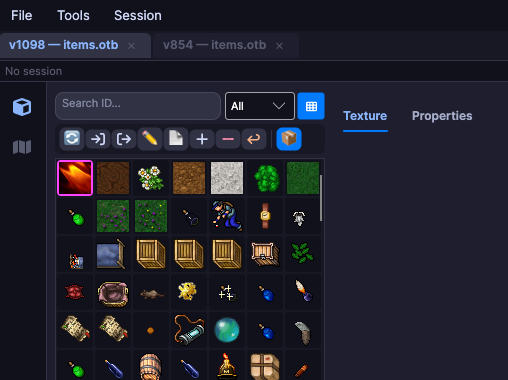
Icon grid
The toggle button is next to the search bar, in the upper-right corner of the items panel.

List mode
Displays each item with sprite and ID in a row — ideal for quick reading and sequential navigation.
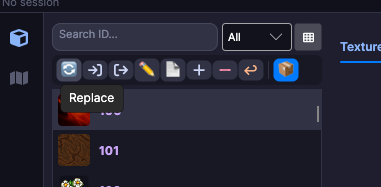
Grid mode
Displays only the sprites in a compact grid — ideal for quick visual identification when you already know what you're looking for.
Tip
Hover over any icon in the grid to see the item ID in the tooltip.
Preferences
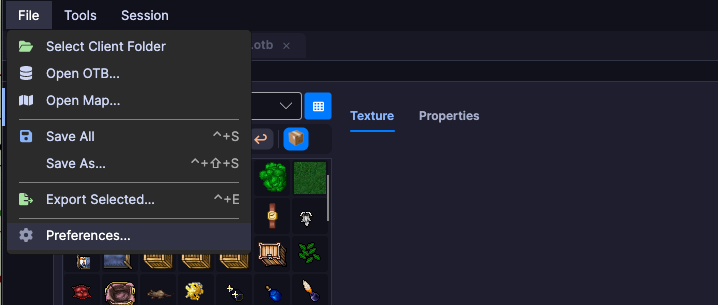
Go to File → Preferences to open the editor settings window.
Items per page
Controls how many items appear at once in the items panel. The default value is 100.
| Setting | Value |
|---|---|
| Minimum | 10 |
| Maximum | 1000 |
| Increment | 10 |
| Default | 100 |
The change is applied immediately and persisted across sessions — when you reopen the editor, the configured value is preserved.
When to increase
For projects with many items, increase to 200–500 to reduce page navigation. Very high values may slow down scrolling on modest machines.
Resizable panels
The three editor columns can now be resized by dragging the splitters between them.
| Panel | Position | Content |
|---|---|---|
| Left | Client items | Sprite list/grid, search bar, pagination |
| Center | Editor | Texture and Properties tabs, sprite composition |
| Right | OTB detail | Server item properties |
Drag any splitter to give more space to the area you're currently working on.