Welcome Screen and Sessions
Quickly choose what to do when opening the editor — continue where you left off or start fresh.
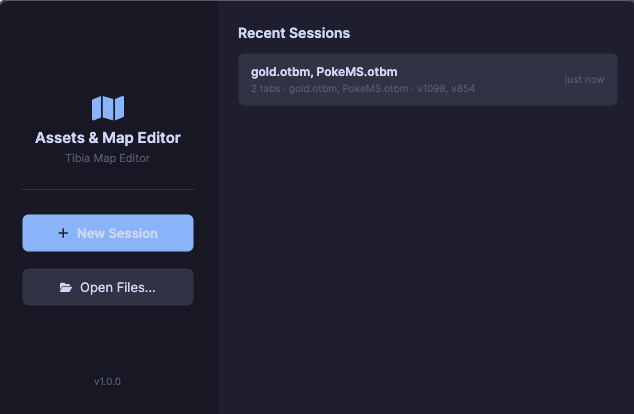
Welcome screen
When you start the editor, the welcome screen presents two options:
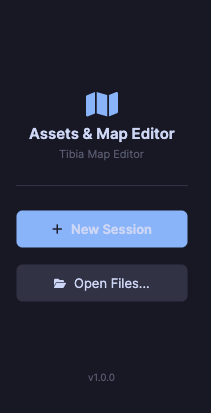
| Action | What it does |
|---|---|
| Restore Last Session | Reopens exactly the files and settings from last time |
| Open Files | Starts a blank session to open new files |
Session history
The right side lists your recent sessions, with closing date and files for each one.
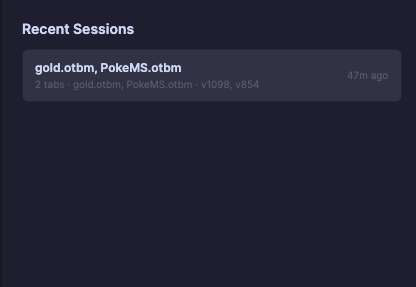
- Click any session in the history to restore it directly
- The history keeps up to 20 recent sessions
- Each entry records the open files and map view settings
Tip
The history includes View settings (visible floors, grids, animations) — everything is restored automatically.
Session restore
When restoring a session, the editor recovers:
| Restored data | Description |
|---|---|
| Open files | Client folder, OTB, and map |
| Map viewport | X/Y position, floor, and zoom |
| View settings | All View menu options |
| Town list | Map towns loaded in the navigation list |
Multiple sessions
Each session works independently. Open multiple .spr + .dat sets in separate sessions and transplant items between them without conflicts.
Animations
Animate Always
The "Animate Always" property on items is now an editable checkbox in the animation panel.
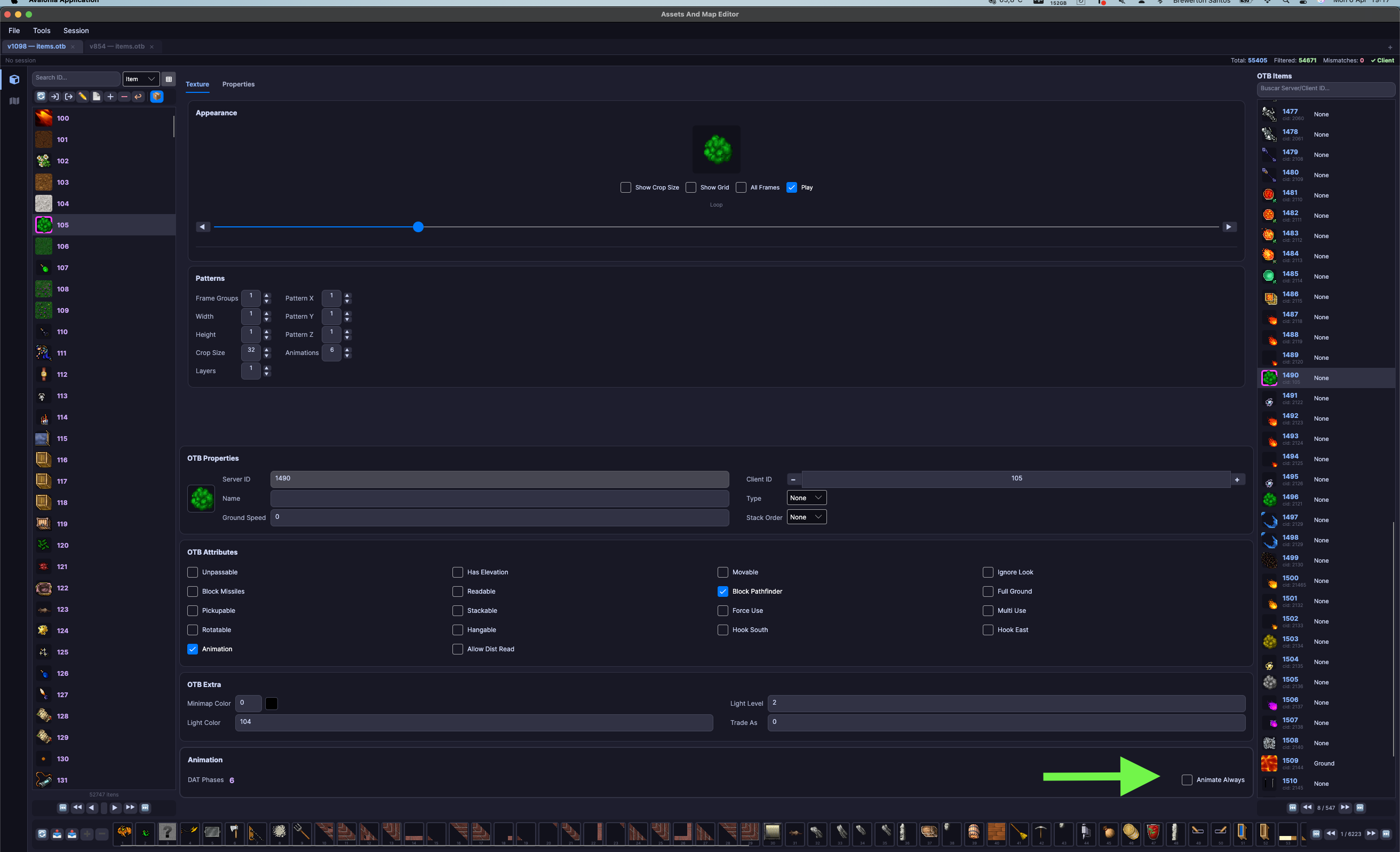
Check or uncheck to control whether the item animates continuously in the client.
Play preserved
The animation Play button now stays active when navigating between items that have animation. No need to click Play every time you select a new item.